Your AI employee watches for the emails you choose
For managers, sales teams and support teams
Tell your AI employee in plain words which emails matter: from a colleague, a client or a whole domain, or to a shared address such as support or sales. Each match reaches your chat within minutes, handled the way you asked.

Why it matters
Important emails come to you, so you spend less time checking your inbox for them. Managers see what needs their decision, sales hears about each new inquiry, and support gets a brief on each new ticket.
- Before
- Keeping up with important emails meant checking your inbox yourself, or a scheduled task that looked through it every few hours.
- Now
- Each matching email reaches your chat within a couple of minutes, already summarized, drafted or turned into a task.
What you get
- Watch for the emails that matter: from a person, a client or a whole domain, and to or from a shared address such as support or sales.
- Every message, or only new conversations: follow a person or a client message by message, replies included, or hear only about new tickets and new inquiries.
- Handled the way you asked: a brief, a two-line summary, what needs your decision, a draft reply, a task or a reminder. When you ask, it adds history from your connected help desk, tasks and CRM.
- In your own chat: each matching email arrives within a couple of minutes, and your AI employee replies to a sender only when your request says so.
- The Gmail inbox you connected: it watches the Gmail or Google Workspace inbox connected to your AI employee, so email to a shared address counts when it reaches that inbox.
Who uses it
Managers
Follow every email that a colleague or a direct report sends you, replies included: two lines on each, and whether it needs your decision.
Example Watch every email from maya.chen@yourcompany.com and sam.patel@yourcompany.com: two lines on each, and tell me if it needs my decision.
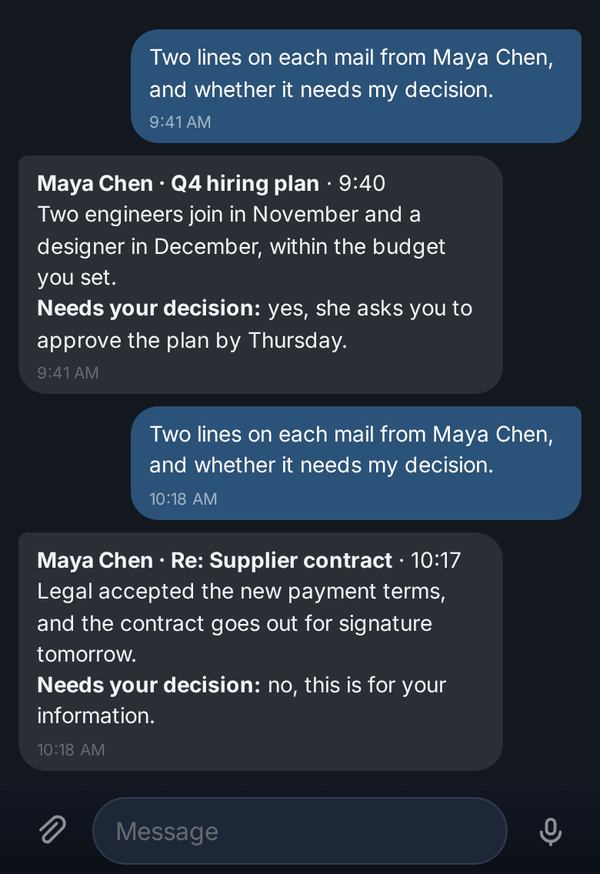
Two lines on each email from a colleague, and whether it needs your decision. Example data. Sales
Hear about each new inquiry to your sales address: who it is, what they want, their history in your CRM and the next step. Add a second watch for every email from a key account.
Example Brief me on every new inquiry to sales@yourcompany.com, new conversations only: who it is, what they want, what the CRM has on them, and the next step with a short draft.
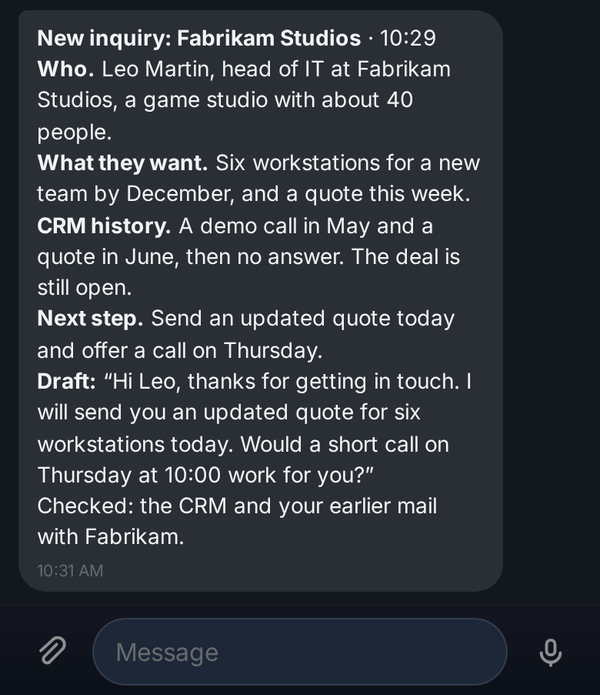
A new inquiry with its CRM history and a short draft. Example data. Support
Watch your support address for new conversations only, and get a brief on each new ticket: who wrote, the client's history, their devices and serial numbers, and a draft reply.
Example Brief me on every new request that comes to support@yourcompany.com, new conversations only: who wrote, the client's history, their devices and serial numbers, what we should do, and a draft reply.
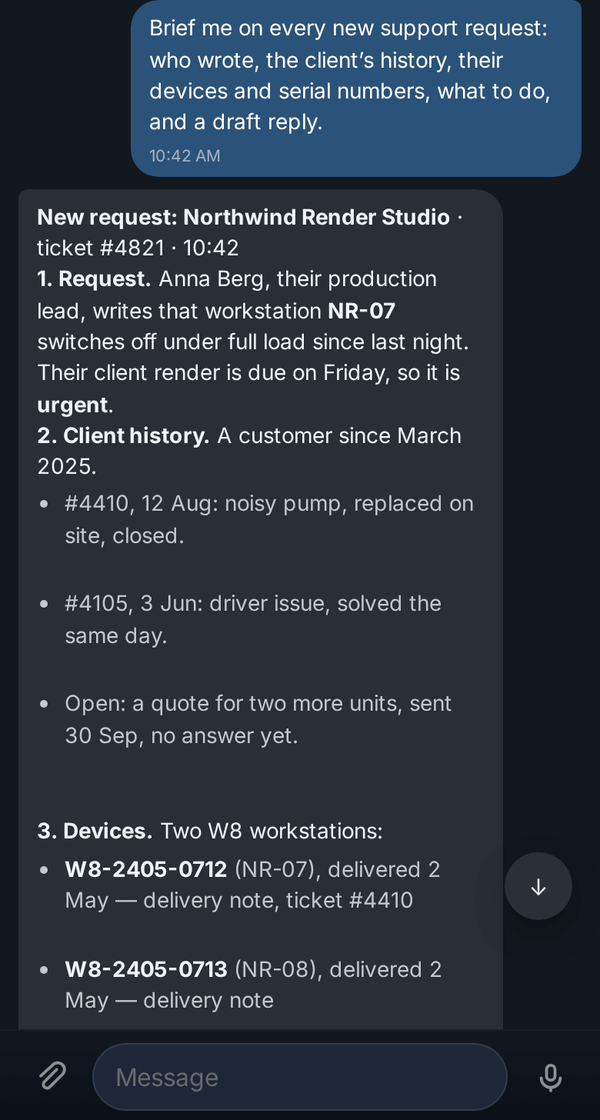
A new ticket with the client's history and devices. Example data. Account managers
Watch every email from a client's whole domain: a short summary of each message and the questions that are still open.
Example Watch every email from acme.example: a short summary of each, and the questions we still have to answer.
Assistants
Hear about every email to your office address, and every email from your bank, the tax office or your landlord once you give their address or domain. Get what they require and by when, with a task or a reminder if you ask for one.
Example For every email to office@yourcompany.com, tell me what they need from us and by when, and remind me two days before the deadline.
Finance
Hear about every email to your invoices address: who sent it, the amount and the due date, with a task to pay it.
Example For every email to invoices@yourcompany.com, tell me who sent it, the amount and the due date, and add a task to pay it.
Hiring
Get each new application to your jobs address with the role, a short profile of the candidate and a draft reply.
Example For every new application to jobs@yourcompany.com, new conversations only: who it is, which role, two lines on their experience and a draft reply.
How to use it
Connect your Gmail or Google Workspace inbox to your AI employee with full email access. It watches the inbox you connect, so email to a shared address such as support or sales counts when it reaches you too. If your help desk is connected, its history can go into a brief when you ask for it.
Ask in your own words
Open the chat with your AI employee. Say which emails to watch for: from a person or a client (give their address), from a whole domain, or to or from a shared address such as support or sales. Say whether every message counts, replies included, or only the first message of each new conversation, and what to do with each one.
Example Watch every email from maya.chen@yourcompany.com, replies included. For each one, give me two lines and tell me if it needs my decision.
Check the confirmation
Your AI employee confirms what it watches for and until when, and says that emails which arrived earlier are not handled. If it says your inbox needs full access, run
/google-authonce and accept: watching then starts by itself. If it asks you to connect your inbox first, do that and ask again.Get each matching email in your chat
A couple of minutes after a matching email arrives, your AI employee handles it in your chat, under your request, the way you asked. Several emails that arrive together come in one message.
Act on it in the same chat
Reply to the sender yourself, or keep talking to your AI employee about the email: it already has the context.
Example Draft a reply to Maya that the hiring plan is approved, and remind me on Thursday to check that the contract is signed.
Pause or stop at any time
Type
/routinesto see what you watch for, when the last email was handled and whether it is watching now. Use/routine offwith its number to pause,/routine onto resume and/routine deleteto stop.
Good to know
- To follow a person, a client or a deal, ask for every message, replies included. For new tickets and new inquiries, ask for only the first message of each new conversation.
- Only the person who set it up receives what it finds, in their own chat.
- Emails that arrived before you set it up are not handled.
- Each watch handles up to 40 emails a day; the rest wait for the next day. If too many pile up, your chat says how many were not handled, so nothing goes missing silently.
- You cannot watch emails sent to your own address or to your company's whole domain, because that would catch every email. Name the person, the shared address or the domain the email comes from instead.
- The content of incoming email is treated as information from its sender, not as instructions to your AI employee.
- Watching lasts a year unless you ask for less, and your AI employee tells you when it ends. If your inbox disconnects, you are told, and watching resumes after you reconnect.
- Already have a scheduled task that checks your email from someone every few hours? Ask your AI employee to watch for email from that person instead, and remove the old task with
/routine delete.
Updates to this feature
Forwarded emails show formatted text and working links
Forwarded notes and the emails your AI employee writes in chat show paragraphs, lists, tables and line breaks, and their web addresses open with one click.
Files your colleagues email you open without waiting for your yes
Files colleagues email you from your company's Google Workspace address open at once, while files from anyone outside your company still ask you first.
Email drafts open inside their conversation with your signature
Reply drafts open inside their conversation with your Gmail signature once, and a change you ask for edits the same draft and keeps its recipients and files.
Admins see Google connected only for AI employees that use it
Google shows as connected for an AI employee when the person it belongs to has connected Google, whether a team member or an admin opens the settings.
Google shows as connected when your AI employee already uses it
Google shows as connected when your Google sign-in lets your AI employee use your email, calendar, documents, spreadsheets and Drive files.
A busy Gmail inbox is not mistaken for a disconnected one
Your AI employee knows Google is only busy, waits a few seconds, tries again, and tells you if a search could not be finished.