See who promised what and by when, one line each
For business owners and managers
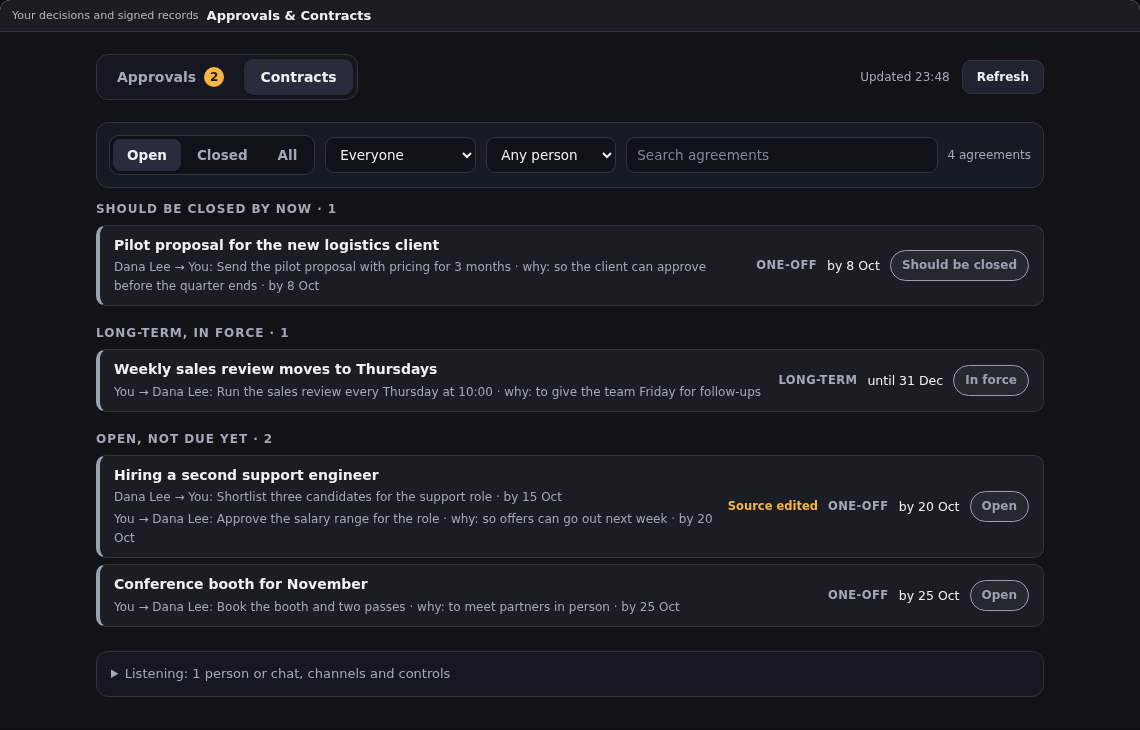
Your AI employee keeps track of the promises made in the chats, emails and meetings it follows for you. Each one now reads as one line: who owes whom what, by when and why.
Why it matters
Business owners and managers see at a glance which promises are overdue, which still stand and which are done. They can follow up in time and close what is finished.
- Before
- Agreements showed as long cards, so it was hard to see who owed what and which promises were overdue.
- Now
- Each promise reads as one line with who owes it, to whom and by when, grouped by what needs your attention.
What you get
- One line per promise: who owes whom what and by when, such as "Dana Lee → You: Send the pilot proposal · by 8 Oct", with the reason when the conversation gave one.
- Grouped by what needs attention: promises that should be closed by now, long-term agreements in force, open ones not due yet, and closed ones.
- You decide how each one ends: mark an agreement done, not kept, no longer needed or replaced by another one, and earlier decisions stay on record.
- Find a promise fast: show open or closed agreements, promises made to you or by you, or one person's, and search the words.
- Fewer wrong promises: a new agreement waits until the conversation has been quiet for an hour, or a day at most, so quick edits and deleted messages do not become promises.
- One promise each, edits flagged: each new agreement holds a single promise, and when a message behind it is edited or deleted later, it is marked and checked again.
How to use it
Choose whose promises to track
In the chat with your AI employee, ask it to monitor a person, with their email address, chat account or phone number, or one conversation. Their messages count from then on.
Example Monitor Dana Lee at dana.lee@acme.example and keep track of what we agree.
Open your agreements
On a computer, click + Add Panel, choose Approvals & Contracts under Approvals and click Add, then open the Contracts tab.
Start with what is overdue
Look at Should be closed by now first: these one-off promises are past their day and still open.
Open an agreement
Click an agreement to open it in place, with every promise in it and the original words it was recorded from.
Close it yourself
Choose Done, Not kept or No longer needed, or pick the agreement that replaced it.
Good to know
- Use Promised to me or Promised by me to see one side, or search for a name or a word.
- An agreement marked Source edited had a message changed after it was recorded, so give it a fresh look.
- The agreements screen is not in the phone and tablet menus, so open it on a computer.
Updates to this feature
Agreements you confirm are recorded, with an accurate Bitcoin status
Agreements you confirm show that you confirmed them, and each agreement page shows its Bitcoin block, or that its record waits for one or is sent again.
Promises in new chat accounts and addresses are tracked at once
Your AI employee tracks that person's promises in the new chat account or at the new address as soon as you add it.