See what waits for your yes and what you decided, on one screen
For business owners
Part of Approve your AI employee's emails, CRM changes and meetings first
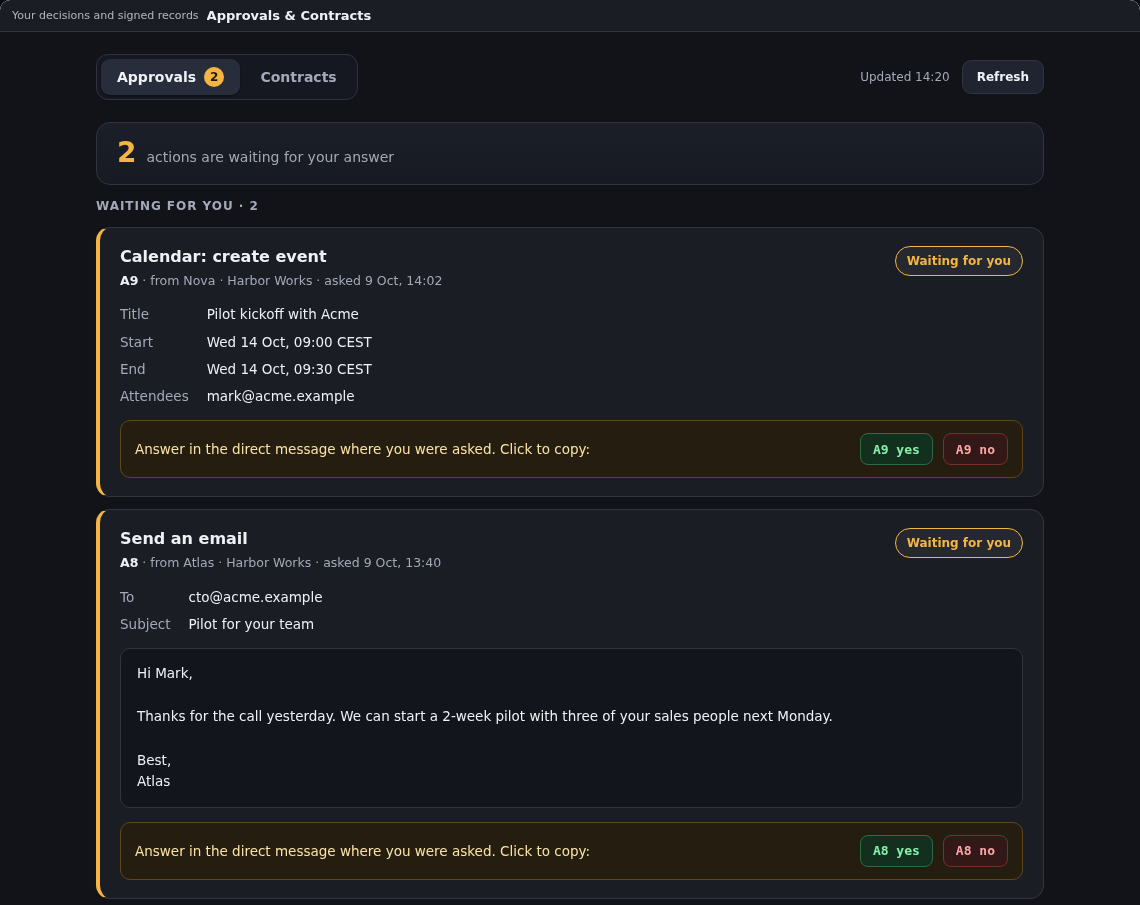
In early access, the approvals screen lists the numbered questions waiting for your yes and what you already decided, so no request gets lost among your messages.
Early access: switched on for selected companies.
Why it matters
The people who decide see the numbered questions from your AI employees in one list. They read each email or change in full before they answer, and can check later what was approved and what happened next.
- Now
- One screen lists what waits for your answer and what you decided, with a clear status for each action.
What you get
- Waiting and decided apart: what waits for your answer comes first, and what you already decided is listed separately.
- Plain titles: each card says what will happen, such as sending an email, updating a Pipedrive deal or creating a calendar event, and who asked and when.
- The full details: the email text exactly as it will be sent, and each field of a change, with dates shown in your own time.
- A clear status: waiting, approved, done, sent, failed, rejected or expired.
- Copy your answer: one click copies the yes or no reply, and you send it in the decisions conversation where you were asked.
- Your words kept: a decided card shows what you wrote and what happened after it.
How to use it
The screen lists numbered questions such as A9, the ones asked in your decisions conversation with the lead AI employee. Requests raised inside an AI employee's own chat are answered in that chat and are not listed here.
Open the approvals screen
On a computer, click + Add Panel, choose Approvals & Contracts under Approvals and click Add. The screen opens on the Approvals tab.
Read what waits for you
Under Waiting for you, each card shows the full email or the fields of the change, who asked and when.
Answer
Click the yes or no button on the card to copy the reply, such as
A9 yes. Paste it into the decisions conversation, the direct message where you were asked, and send it.Check the result
Under Decided, see what you wrote and whether the action went through. Click Refresh to update the screen.
Good to know
- The approvals screen is not in the phone and tablet menus. On a phone or tablet, answer in the decisions conversation instead.
Part of: Approve your AI employee's emails, CRM changes and meetings first
In early access, approve each email, Pipedrive or Zendesk change and calendar event before your AI employee makes it. It does exactly what you approved.
More updates to this feature
- Your yes in a chat topic covers only what was asked thereImprovedEarly accessFor business owners